TickHow To Add Team Members?
TickRoles and Their Access Permissions?
How To Add Team Members?

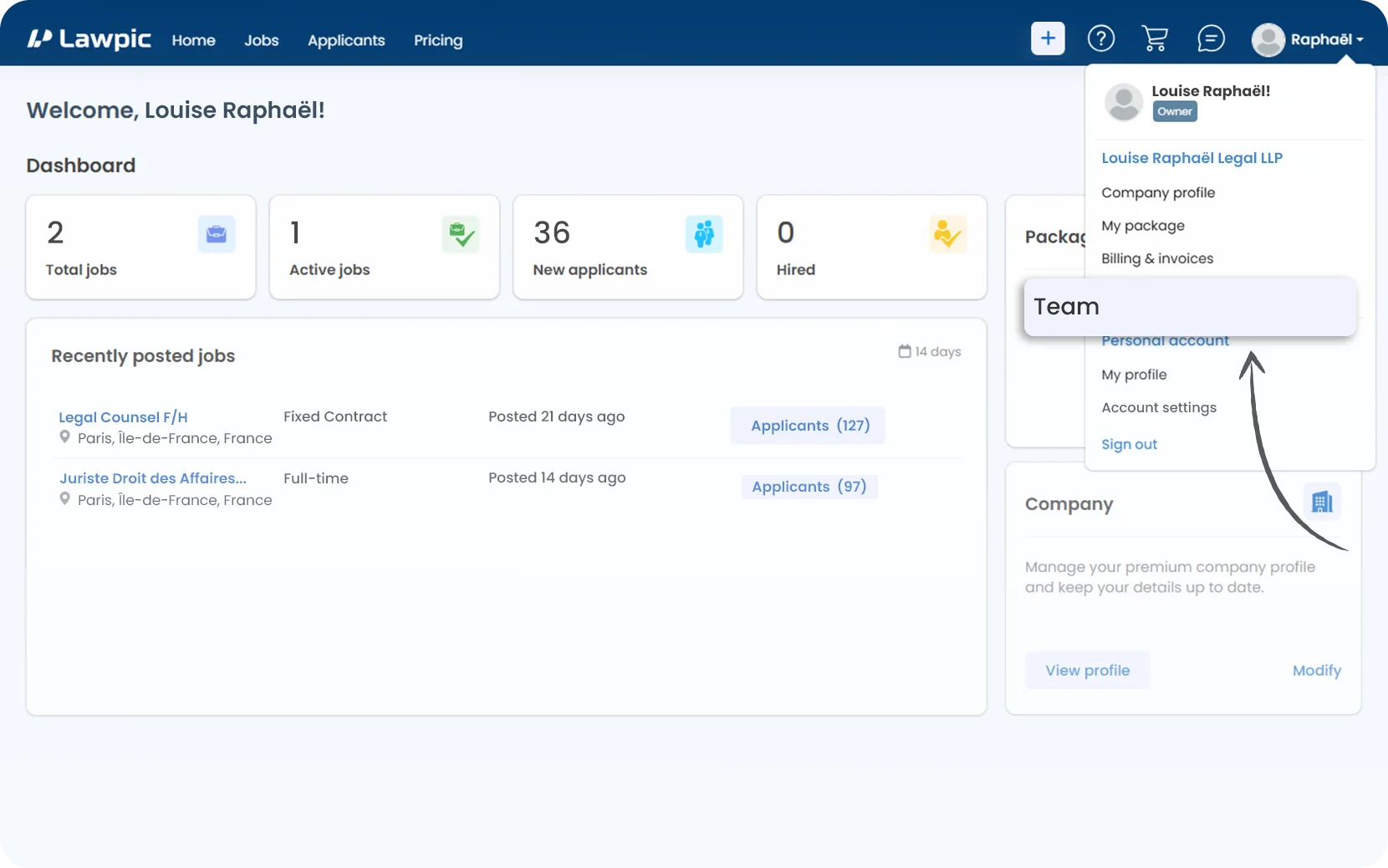
1. Access your dashboard by logging into your Lawpic employer account using your credentials.

2. Click on the "Team" option located within the profile menu in the top navigation bar.
Team Members

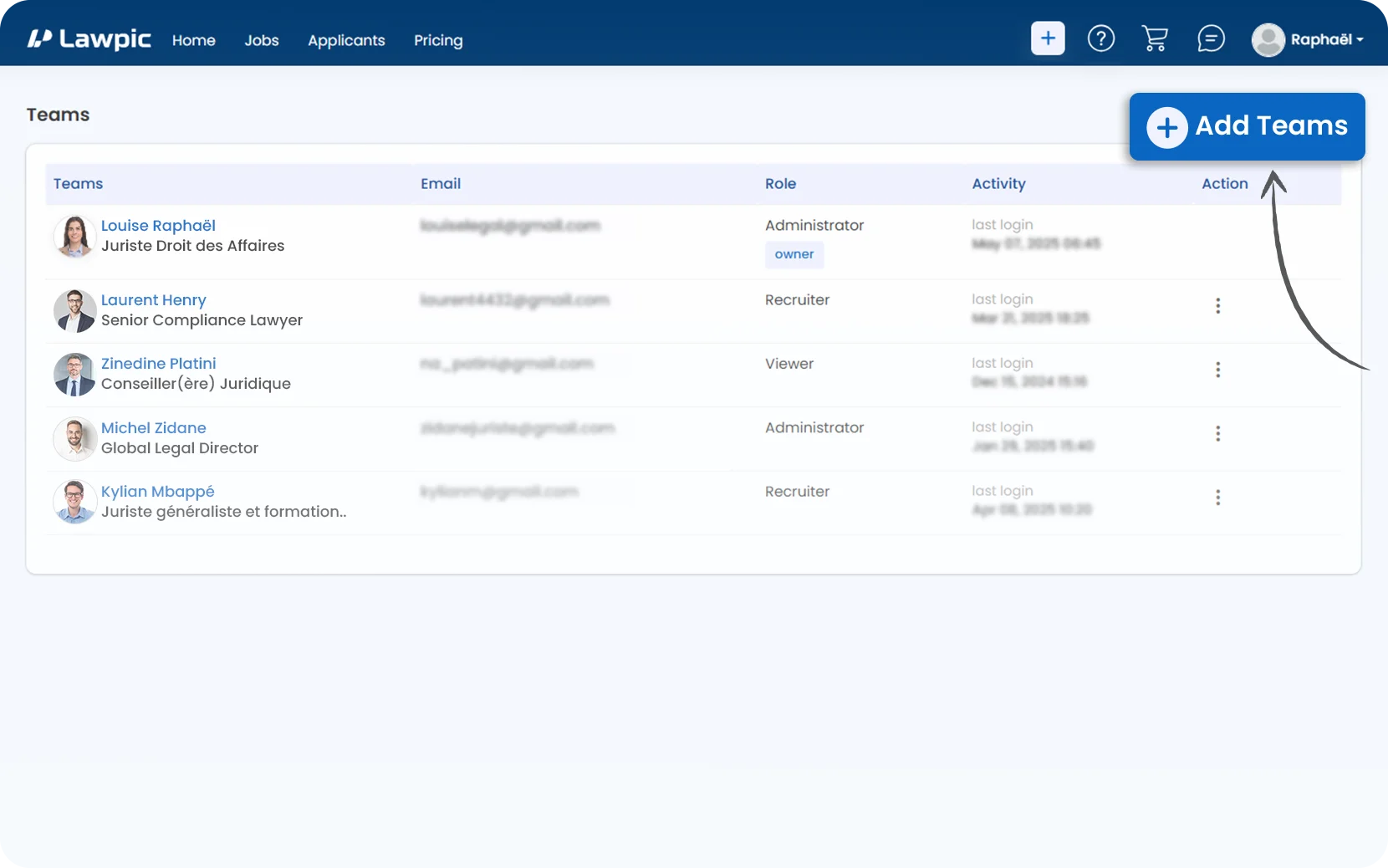
3. Click the "Add Teams" button located at the top-right corner of the teams page.
Team Members

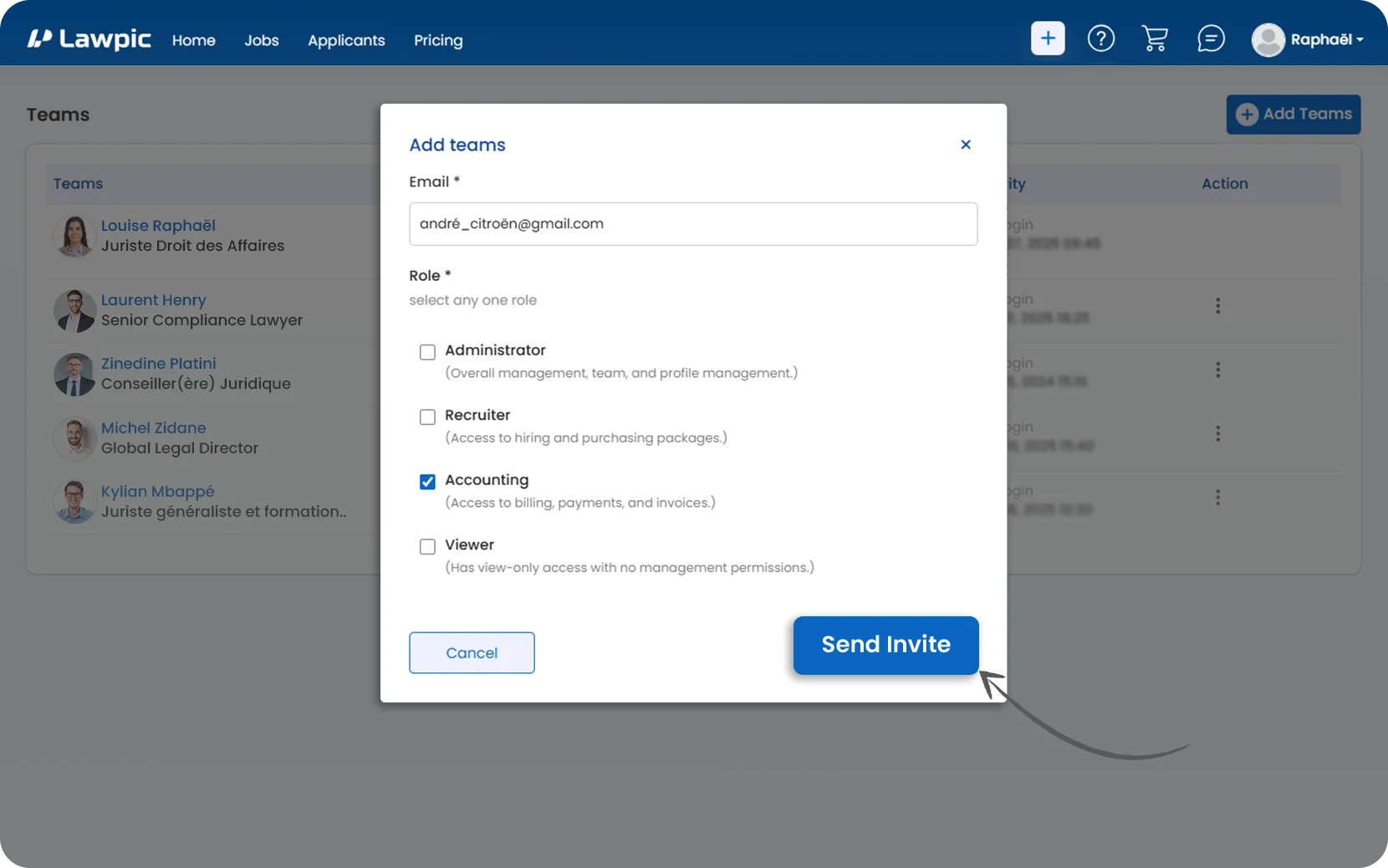
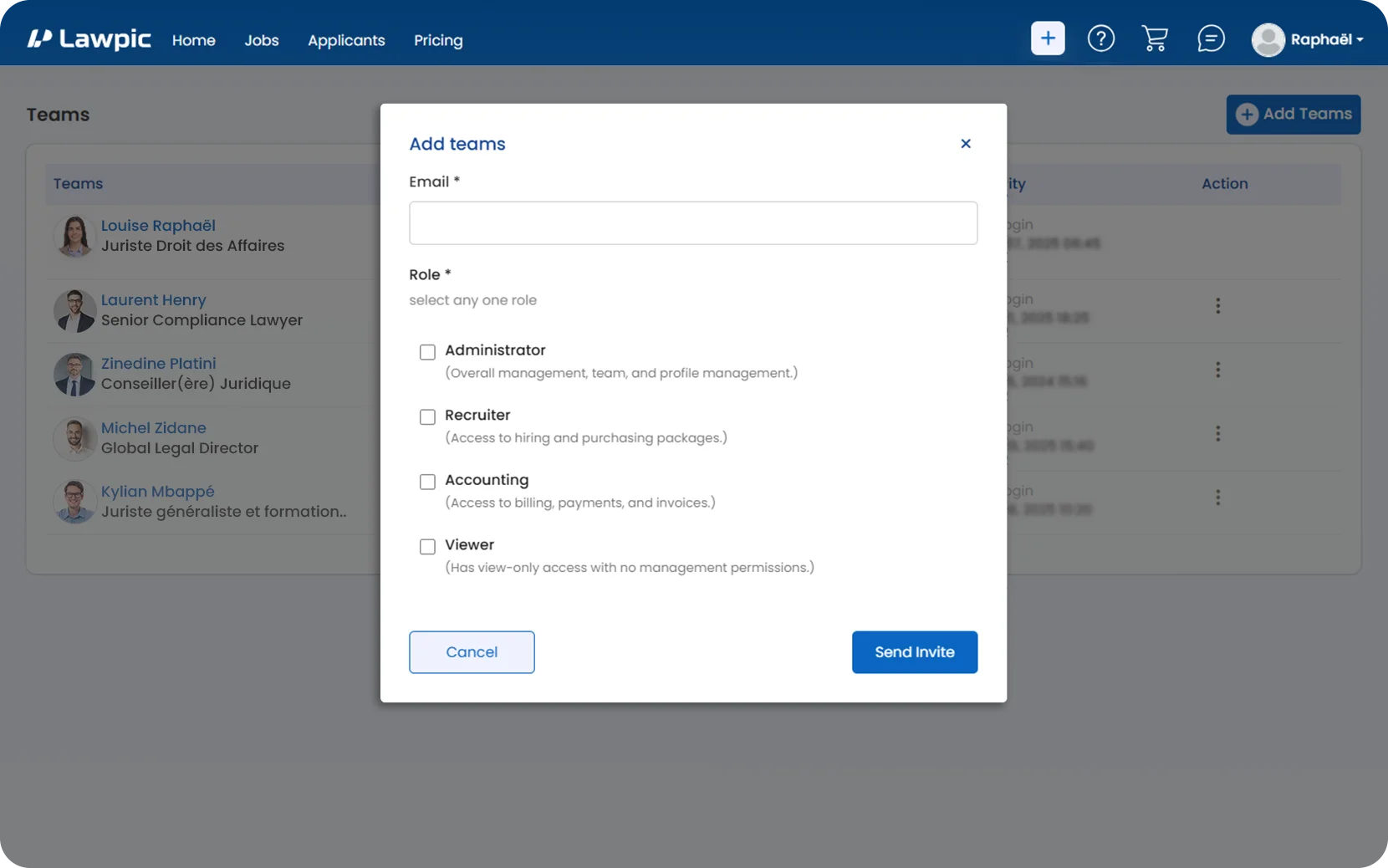
4. In the "Add Teams" popup:

  • Enter the "Email address" of the team member you want to invite.
  • Select "One" role for them from the list provided.
Team Members

5. Click the "Send Invite" button to send the invitation to the selected team member.

6. Once the user accepts the invite, their name, role, email, and last login time will appear in the team list.

Roles and Their Access Permissions?

Assign the right role to each team member to ensure secure and efficient access to your company account.

Roles
Administrator
  • Full access to the Lawpic employer dashboard.
  • Can manage company profile, team settings, and all account activities.
  • Able to invite, remove, or change roles of other team members.
Recruiter
  • Can create, edit, and publish job postings.
  • Manage applicants and communication.
  • Cannot access billing, invoices, or team settings.
Accounting
  • Access to view and manage billing, payments, and invoice history.
  • Can update billing details and view plan usage.
  • No access to job listings, candidates, or team permissions.
Viewer
  • View-only access to the dashboard and job listings.
  • Cannot post jobs, edit settings, or interact with applicants.
  • Useful for compliance teams or stakeholders who just need oversight.