|
Help Center
|
Help Center
|
Help Center
|
Help Center
 How To Shortlisted or Rejected a Candidate?How To
Change the Status of a Candidate?Where
To Find Candidate Details?Where
To Find the Candidate's CV?Where
To Find the Candidate's Cover Letter?
How To Shortlisted or Rejected a Candidate?How To
Change the Status of a Candidate?Where
To Find Candidate Details?Where
To Find the Candidate's CV?Where
To Find the Candidate's Cover Letter?1. Access your dashboard by logging into your Lawpic account.
2. Click on the "Job" menu at the top of the dashboard.
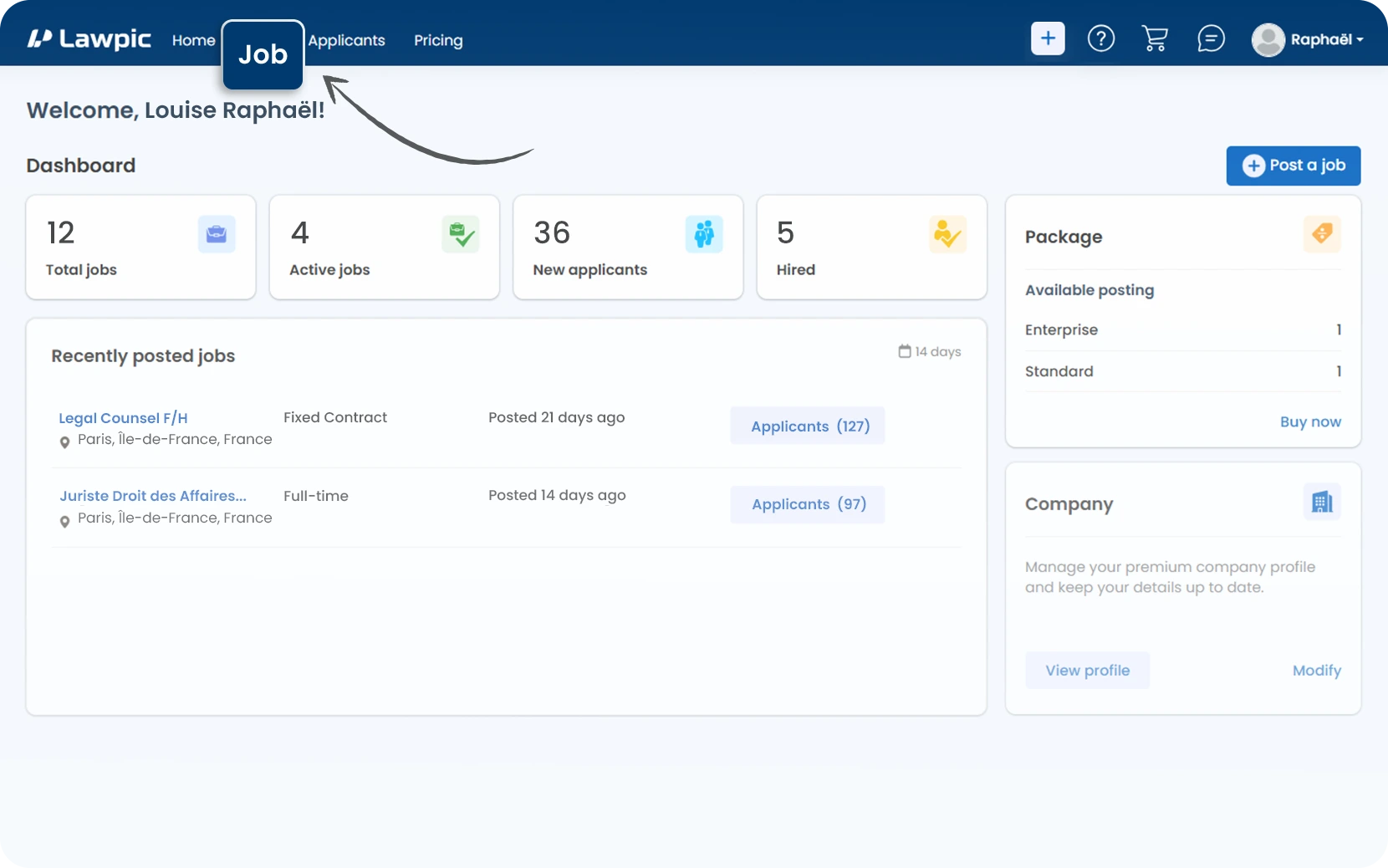
3. On the Jobs page, find the list of posted jobs under the "Posted" tab.
4. Look at the "Total Applicants" column in the job table.
5. Click the "Number" under total applicants.
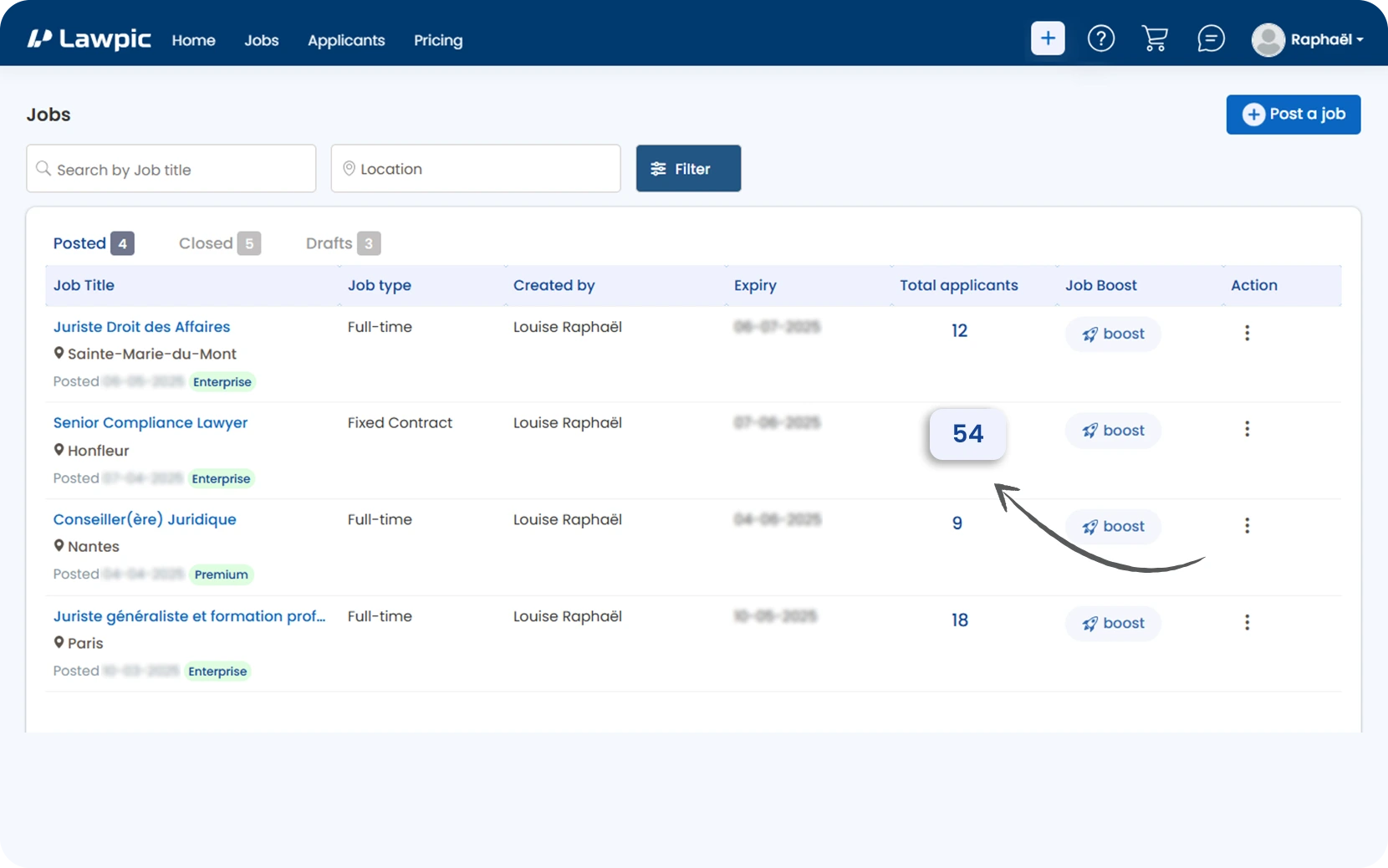
6. After clicking the number under the "Total Applicants" column, you will be redirected to a new page that displays all applicants for that specific job post.
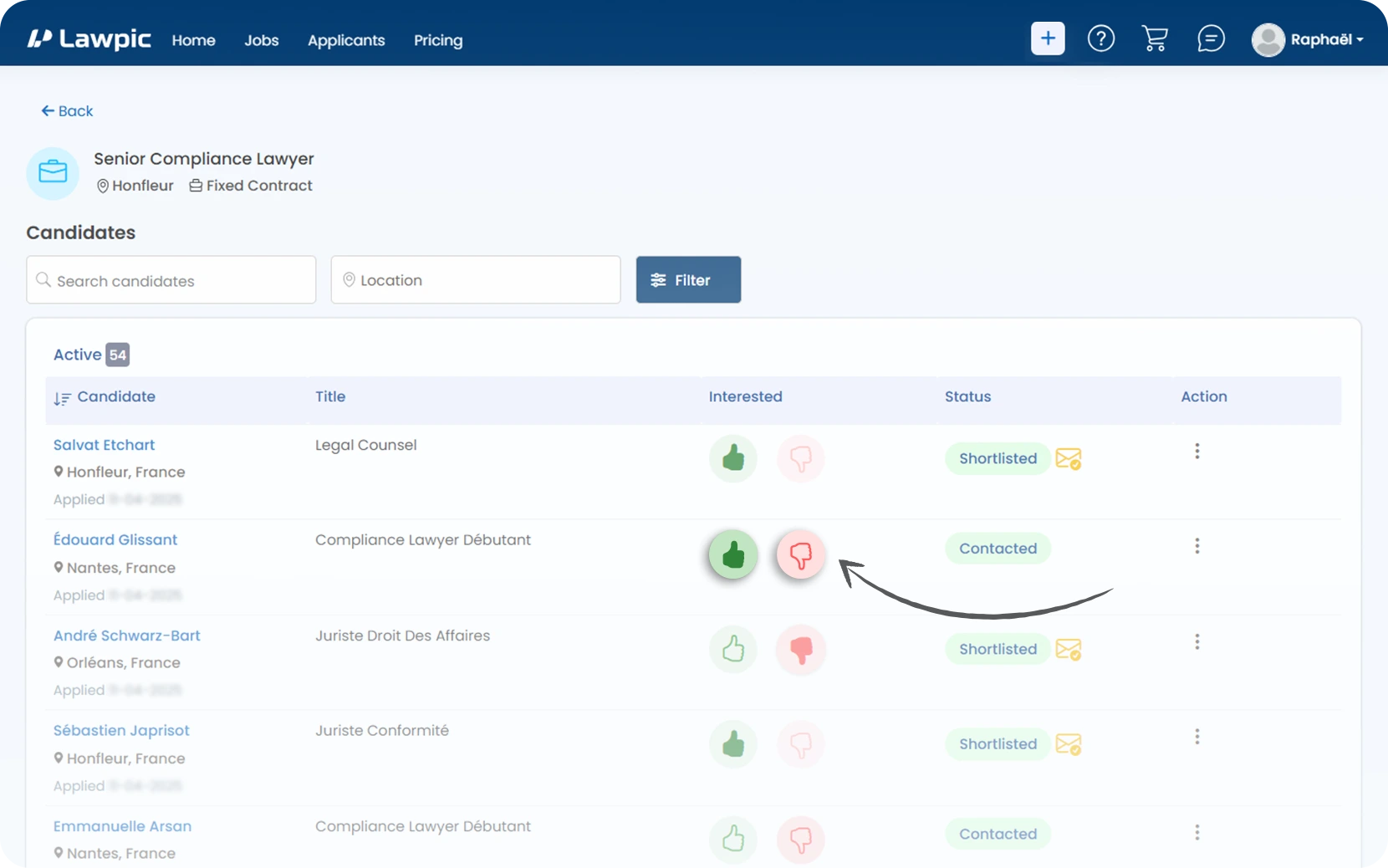
7. The candidates will be listed under the "Active" tab by default.
8. In the "Interested" column, you will see options to either Shortlisted or Rejected them based on their profile and application.
1. Access your dashboard by logging into your Lawpic account.
2. Click on the "Job" menu at the top of the dashboard.
3. On the Jobs page, find the list of posted jobs under the "Posted" tab.
4. Look at the "Total Applicants" column in the job table.
5. Click the "Number" under total applicants.
6. After clicking the number under the "Total Applicants" column, you will be redirected to a new page that displays all applicants for that specific job post.
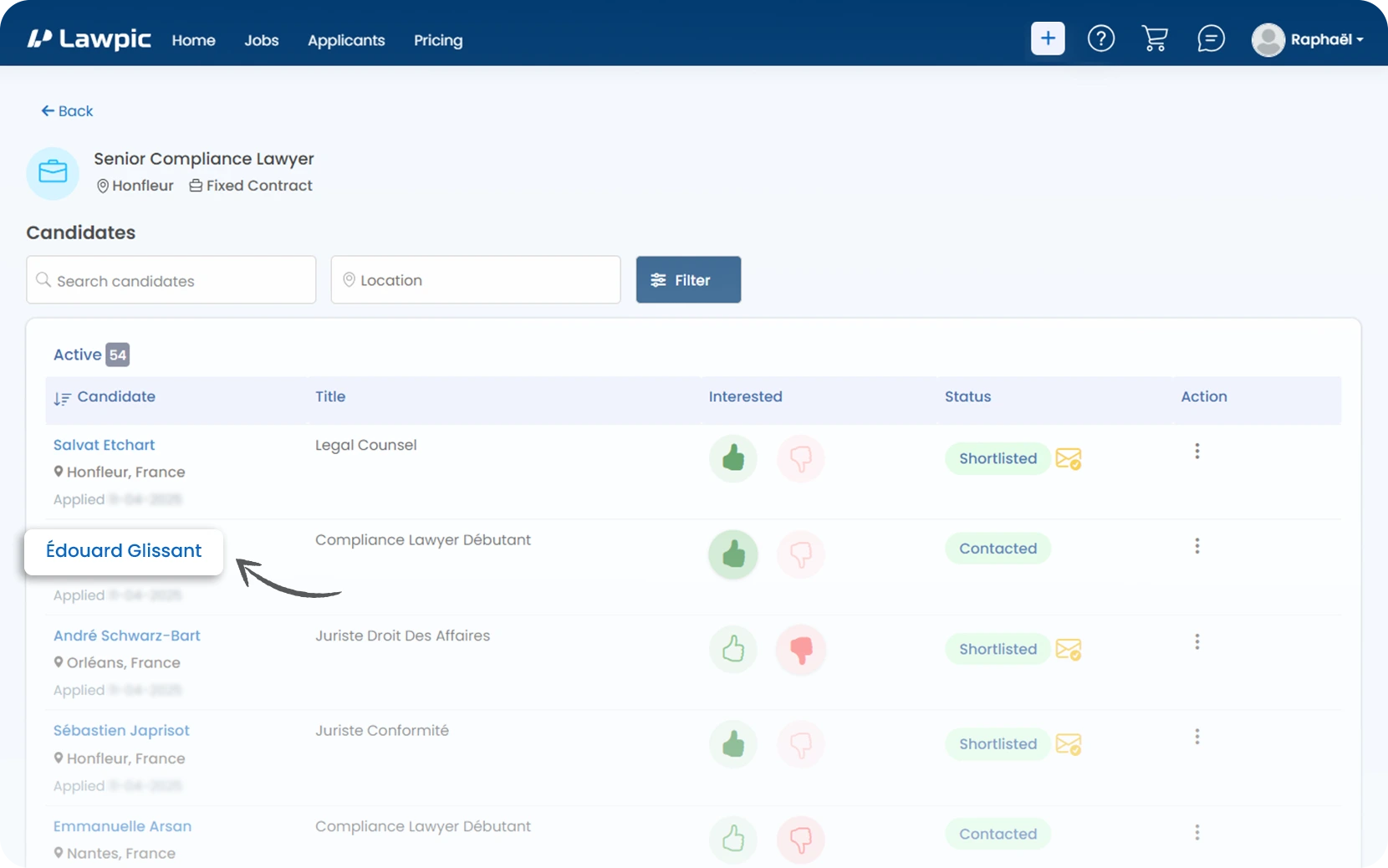
7. The candidates will be listed under the "Active" tab by default.
8. Click on a "Candidate’s Name" in the list.
9. After clicking the name, you will be redirected to a new page.
10. On this detailed profile page, you can view the candidate’s full application and background information.
11. On the candidate's profile page, locate the "Status" dropdown menu (top-right corner).
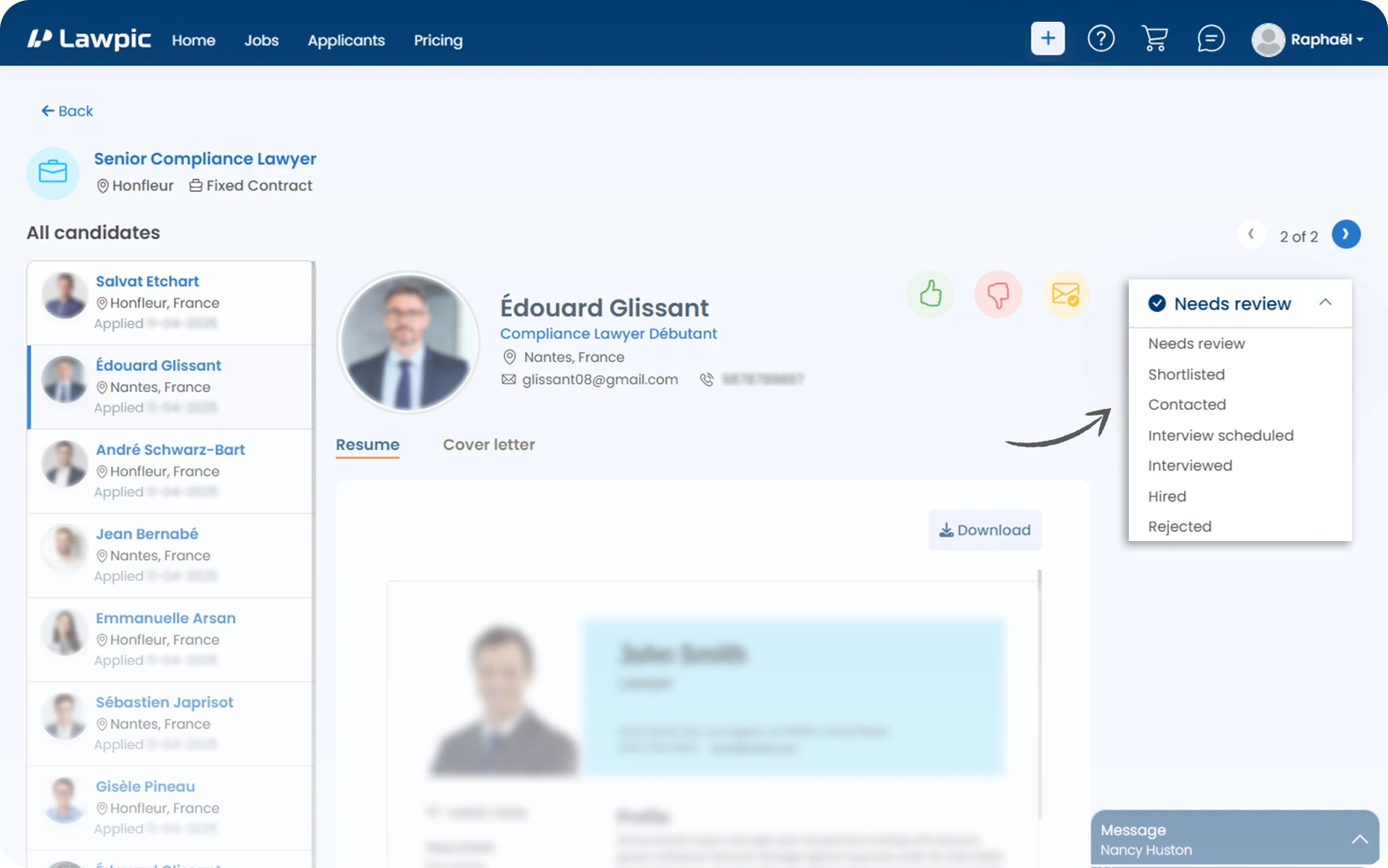
12. Click on the Dropdown menu to view available status options:
13. Select the appropriate status based on your current evaluation or hiring progress.
14. Once selected, the status will be automatically updated and saved.
15. You can return to this page at any time to update or revise the candidate’s status as needed.
1. Access your dashboard by logging into your Lawpic account.
2. Click on the "Job" menu at the top of the dashboard.
3. On the Jobs page, find the list of posted jobs under the "Posted" tab.
4. Look at the "Total Applicants" column in the job table.
5. Click the "Number" under total applicants.
6. After clicking the number under the "Total Applicants" column, you will be redirected to a new page that displays all applicants for that specific job post.
7. The candidates will be listed under the "Active" tab by default.
8. Click on a "Candidate’s Name" in the list.
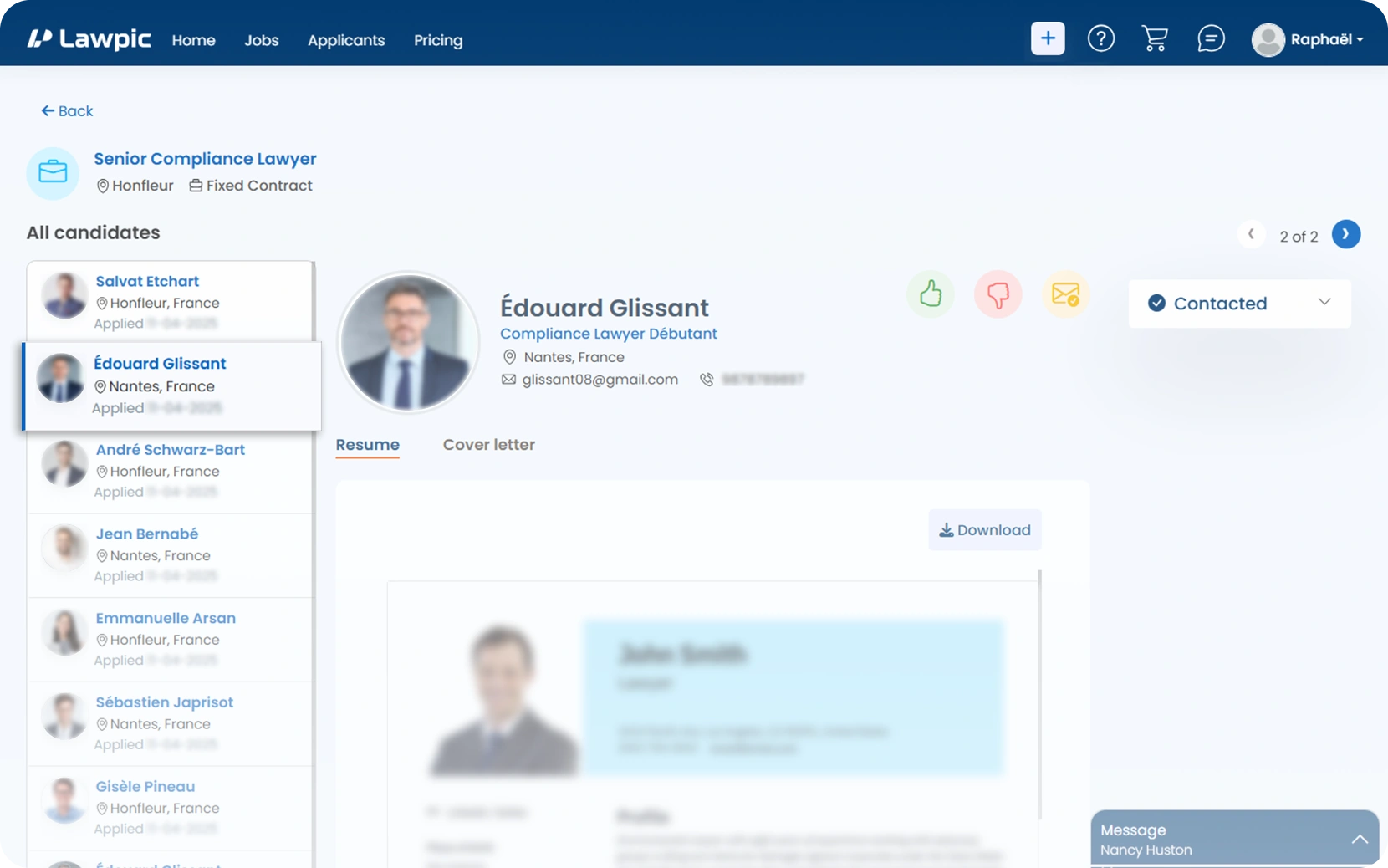
9. After clicking the name, you will be redirected to a new page.
10. On this detailed profile page, you can view the candidate’s full application and background information.
1. Access your dashboard by logging into your Lawpic account.
2. Click on the "Job" menu at the top of the dashboard.
3. On the Jobs page, find the list of posted jobs under the "Posted" tab.
4. Look at the "Total Applicants" column in the job table.
5. Click the "Number" under total applicants.
6. After clicking the number under the "Total Applicants" column, you will be redirected to a new page that displays all applicants for that specific job post.
7. The candidates will be listed under the "Active" tab by default.
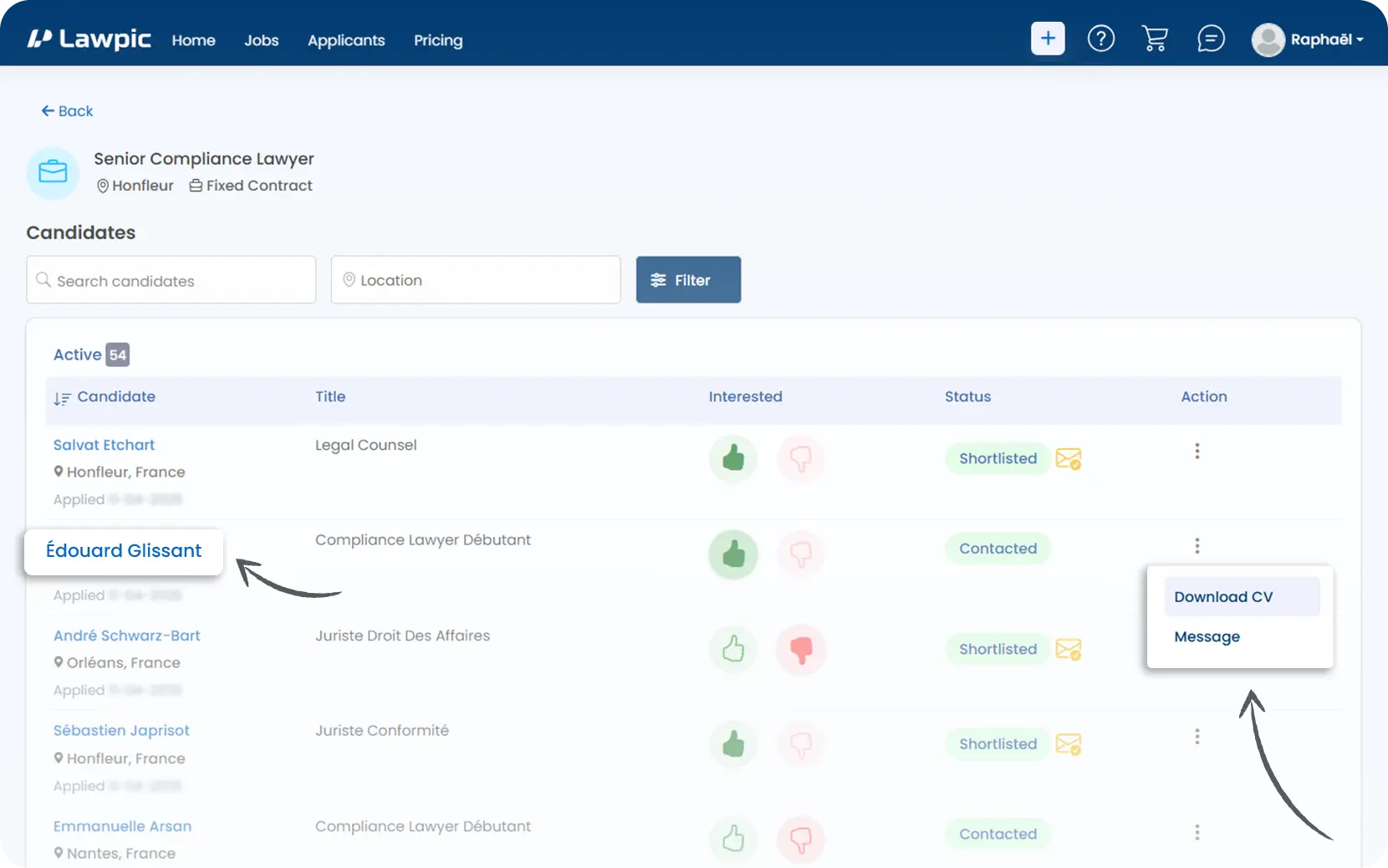
1. Access your dashboard by logging into your Lawpic account.
2. Click on the "Job" menu at the top of the dashboard.
3. On the Jobs page, find the list of posted jobs under the "Posted" tab.
4. Look at the "Total Applicants" column in the job table.
5. Click the "Number" under total applicants.
6. After clicking the number under the "Total Applicants" column, you will be redirected to a new page that displays all applicants for that specific job post.
7. The candidates will be listed under the "Active" tab by default.
8. Click on a "Candidate’s Name" in the list.
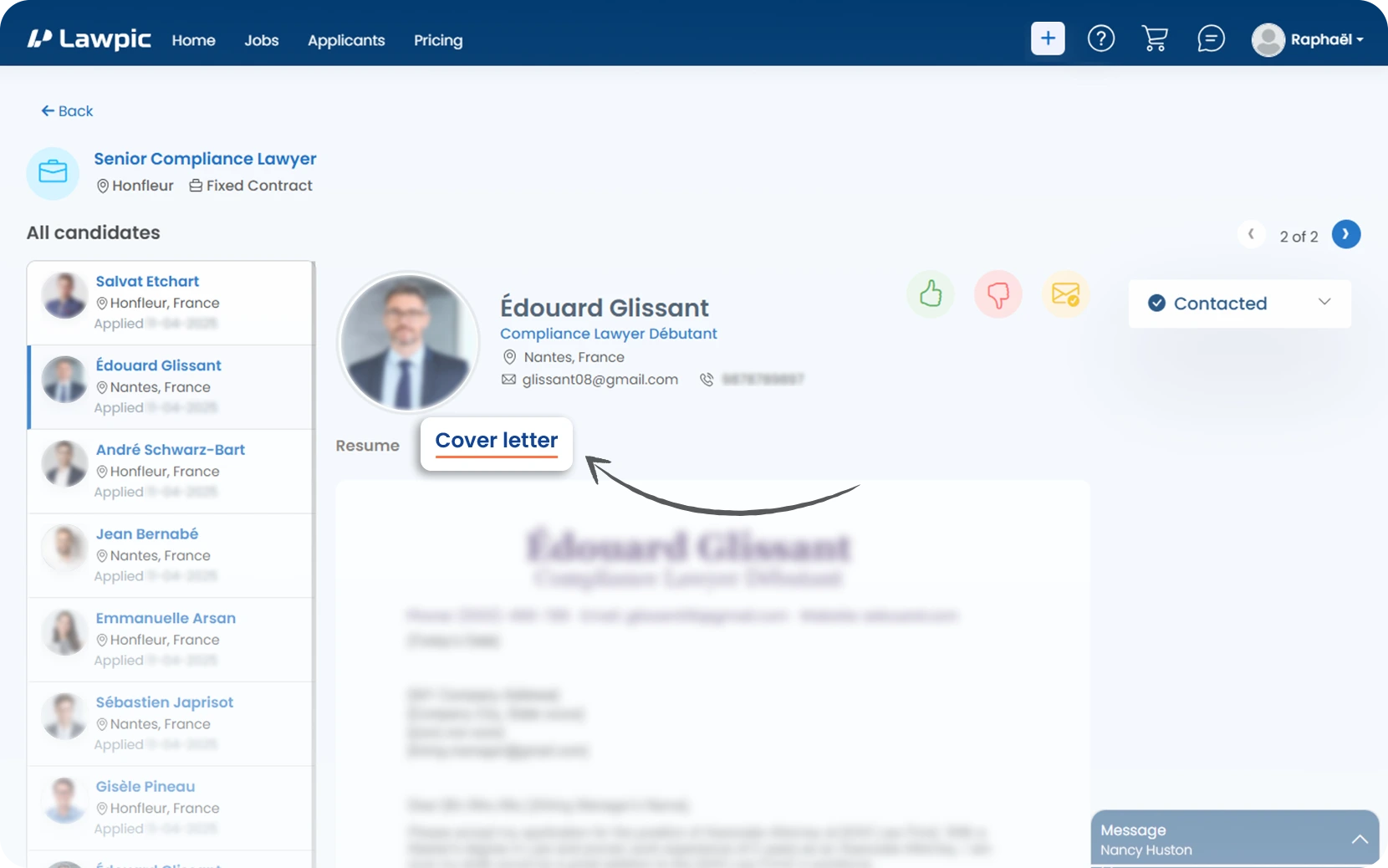
9. After clicking the name, you will be redirected to a new page.
10. There you’ll see a "Cover Letter" section. click on it to view.