|
Help Center
|
Help Center
|
Help Center
|
Help Center
 How To Update Your Billing Information?What
Payment Options are Available?How To
View Your Invoice?
How To Update Your Billing Information?What
Payment Options are Available?How To
View Your Invoice?1. Access your dashboard by logging into your Lawpic employer account using your credentials.
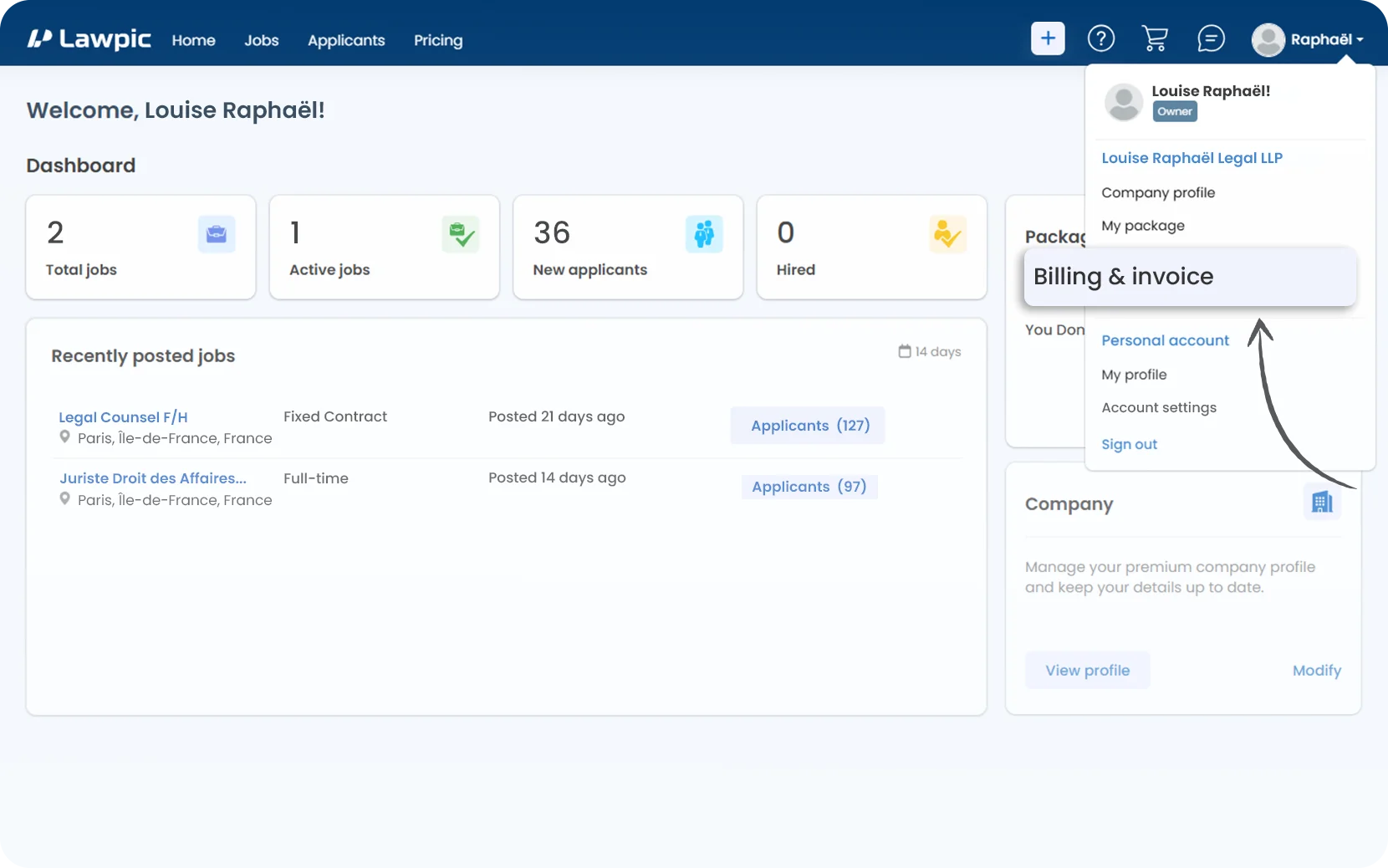
2. Click on "Billing & Invoices" from the profile menu in the top navigation bar.
3.On the Manage Billing & Invoices page, click the "Billing Info" tab.
4. Under the Billing Information section, click "Edit" and update your billing details.
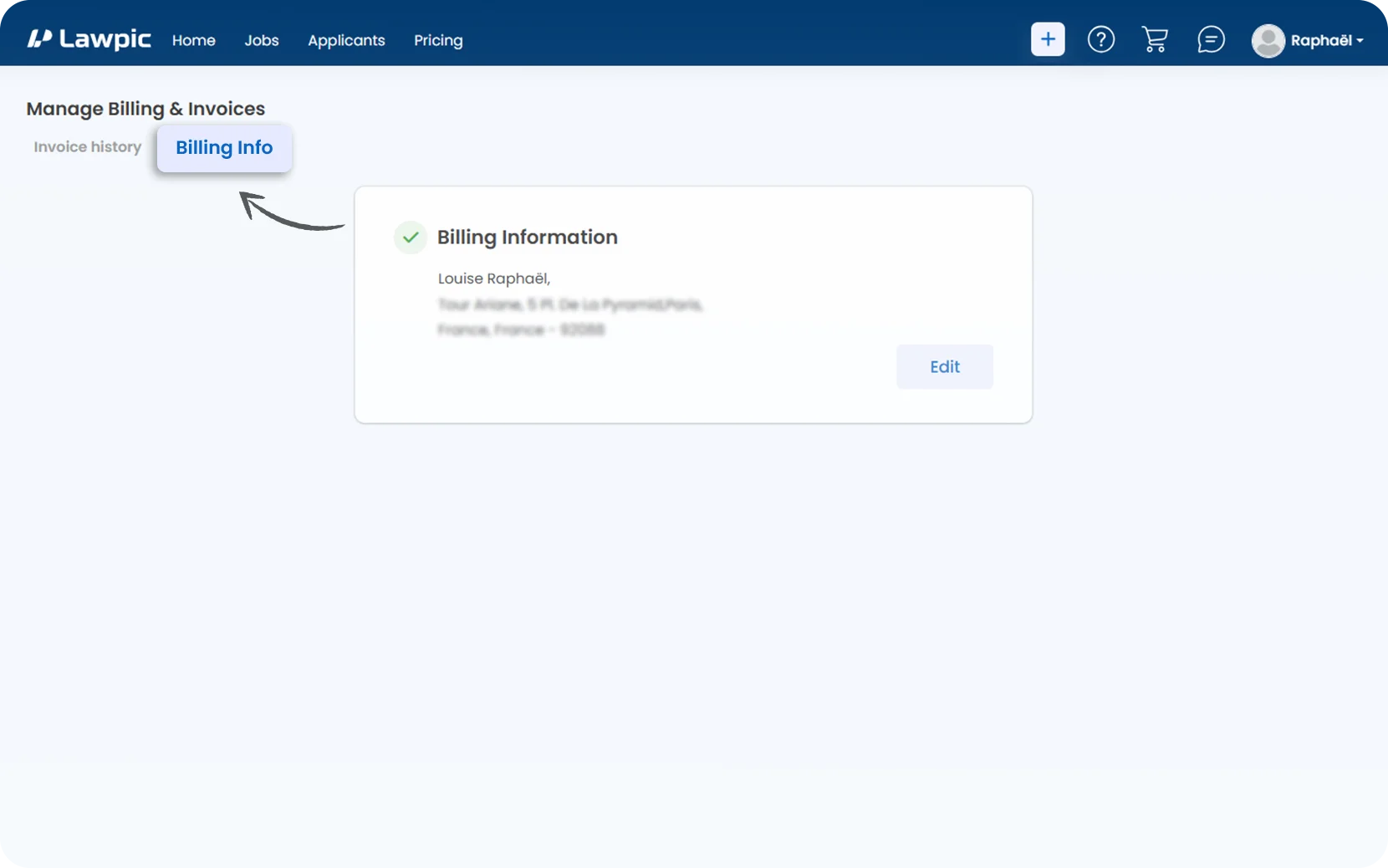
1.You can choose between Two secure payment options on the checkout page:
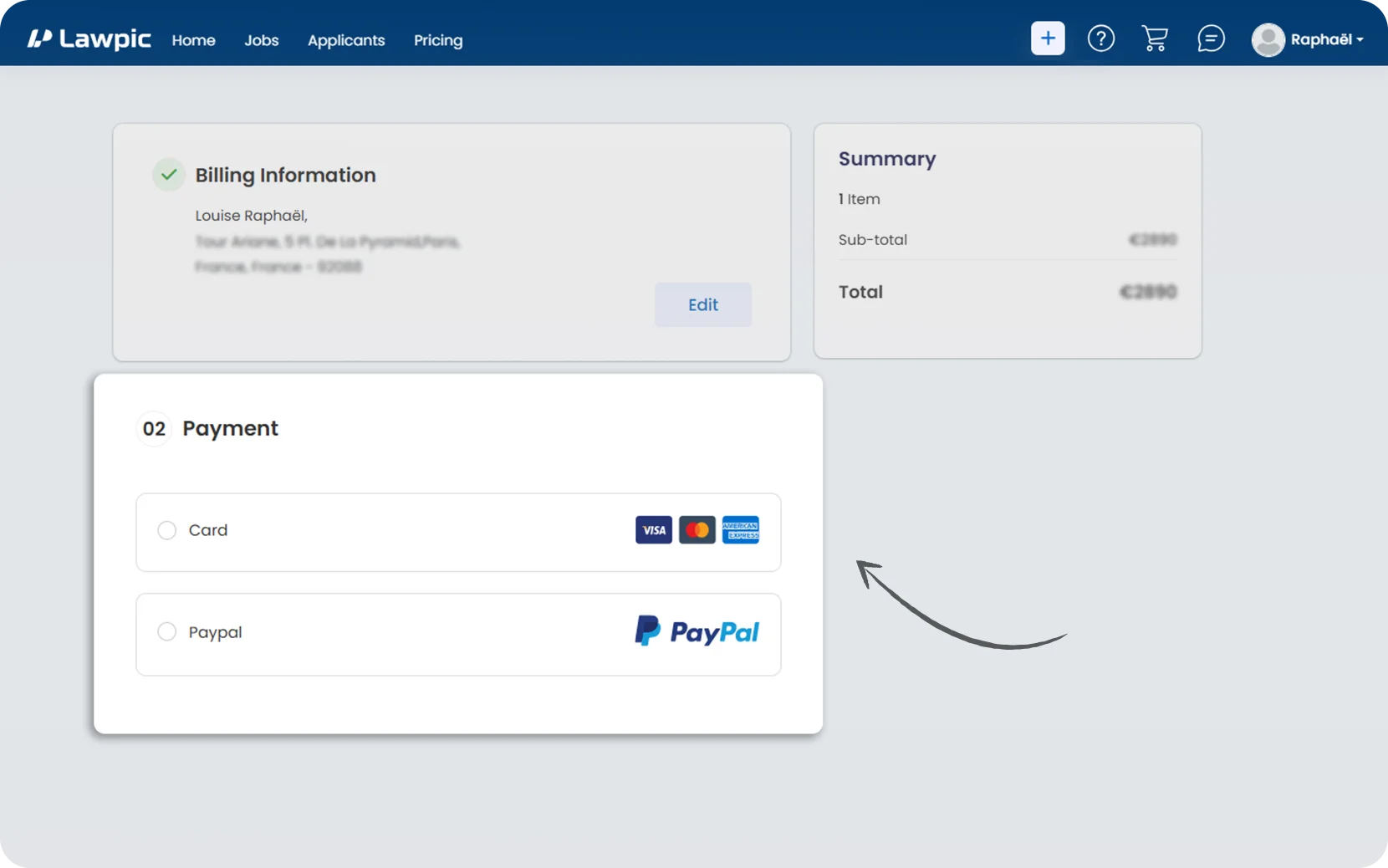
2. Your payment will be processed, and a "Confirmation Message" will be displayed once the transaction is successfully completed.
1. Access your dashboard by logging into your Lawpic employer account using your credentials.
2. Click on "Billing & Invoices" from the profile menu in the top navigation bar.
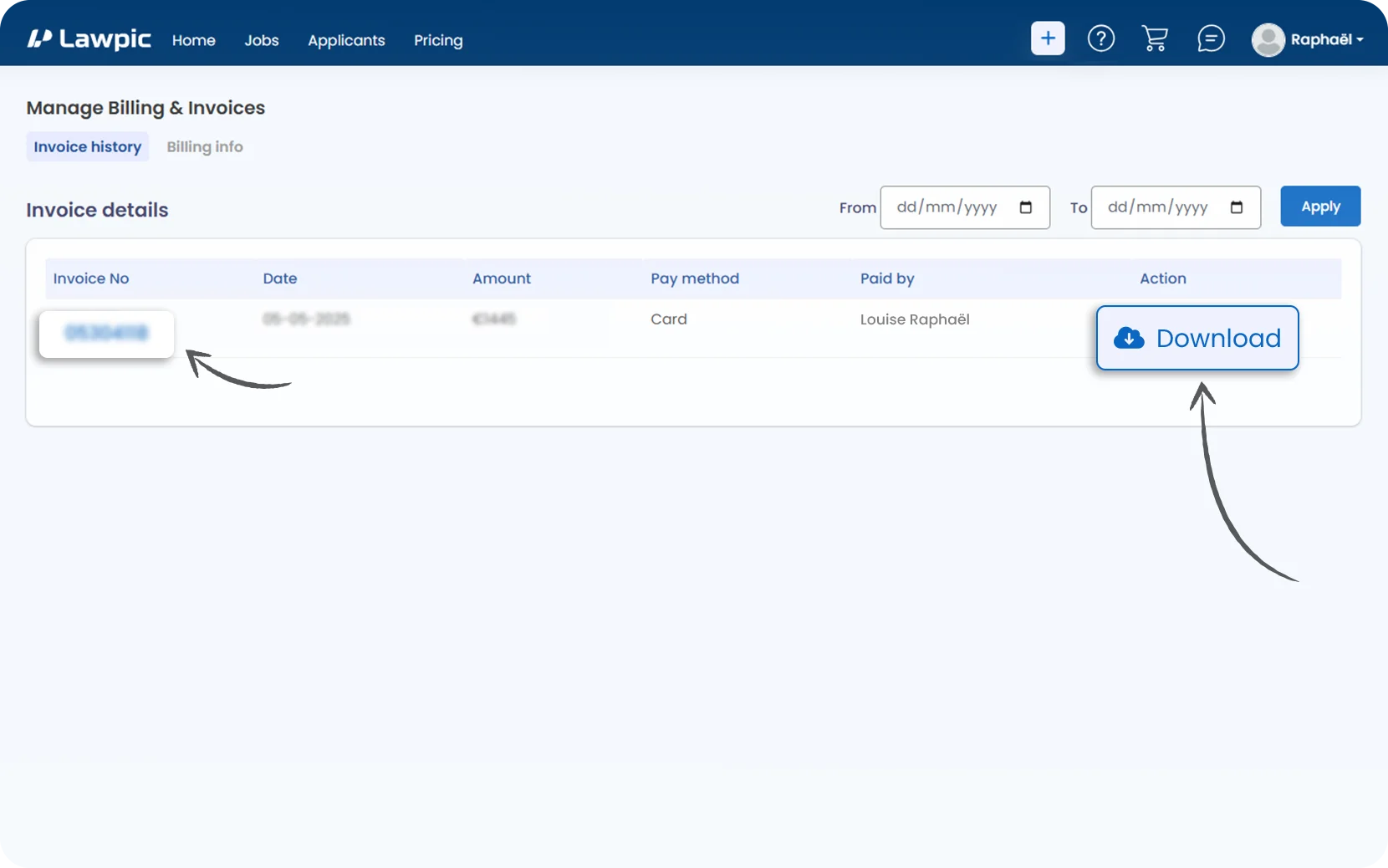
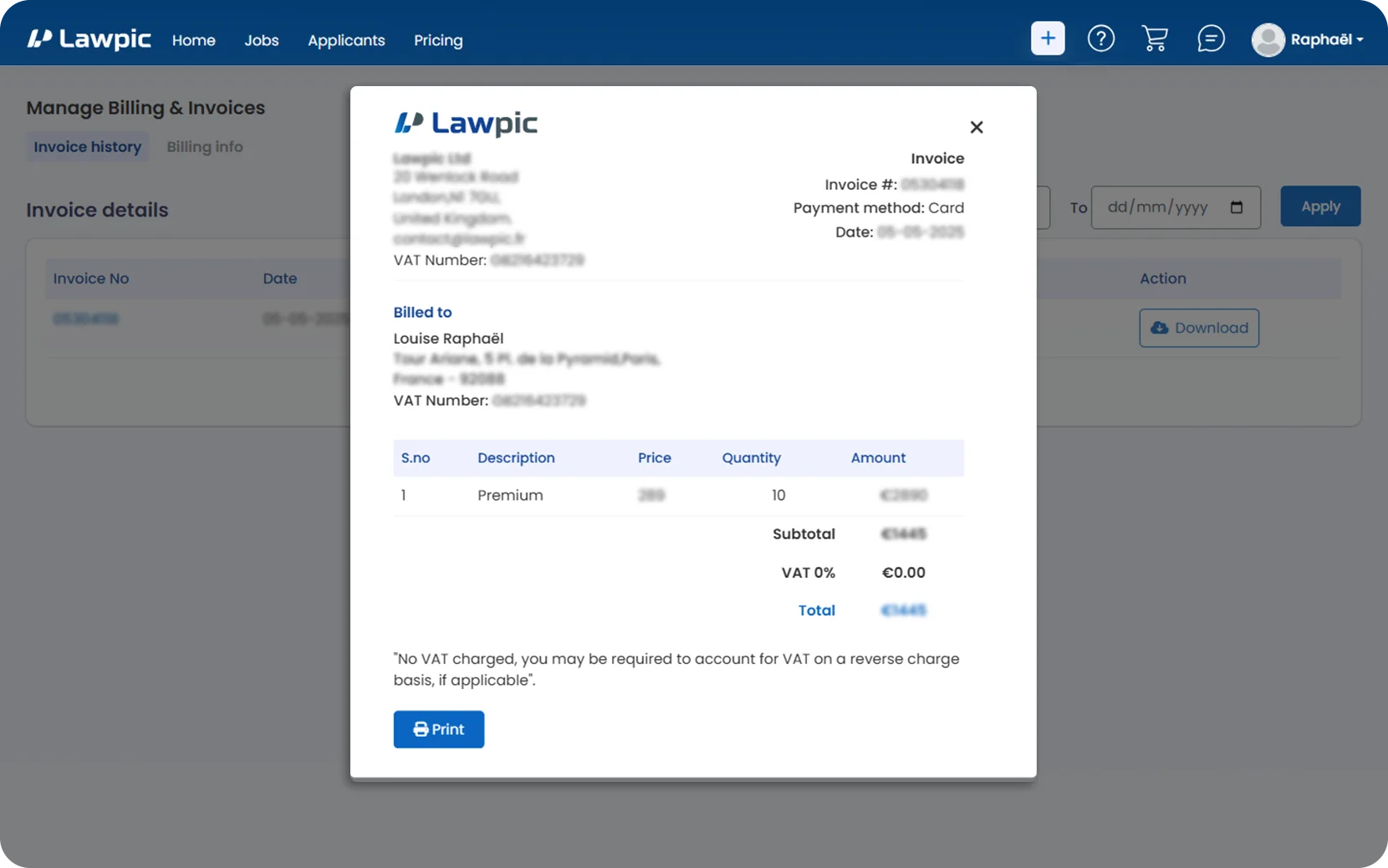
3. You’ll be directed to the Billing & Invoices page, where you can see a list of all past transactions.
4. Each row displays key details such as "Invoice ID, Amount, Package Type, Payment Method, and Date."